
Microsoft 365 Isn’t Secure by Default
Microsoft 365 is one of the most widely used cloud productivity platforms, but being hosted in the cloud does not automatically mean your environment is secure.
Many organisations assume that Microsoft 365 is secure by default. While Microsoft provides powerful security capabilities, organisations are responsible for configuring and managing many of those controls correctly. A single misconfiguration such as weak identity policies, excessive external sharing, or an unmanaged device accessing sensitive data can create a significant security gap.
For IT Heads and CTOs, the question is not simply whether Microsoft 365 has security features. The real question is: Are those features correctly configured for your organisation?
5 Key Areas to Review in Your Microsoft 365 Environment
A Microsoft 365 Security Assessment can help identify gaps before they become incidents.
Here are five areas every IT leader should review.
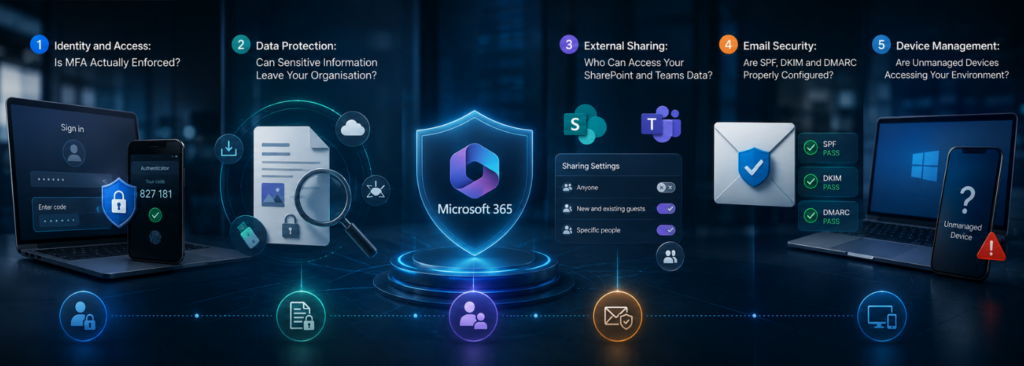
1. Identity and Access: Is MFA Actually Enforced?
Identity is one of the most important security layers in Microsoft 365. If an attacker compromises a user’s credentials, they may gain access to email, files, Teams conversations, and other business information.
Start by checking:
– Is Multi-Factor Authentication (MFA) enforced for all users?
– Are administrators subject to stronger authentication requirements?
– Are legacy authentication methods blocked?
– Are Conditional Access policies configured and actively enforced?
– Are high-risk sign-ins and users being monitored?
– Are inactive or unnecessary accounts regularly reviewed?
Conditional Access allows organisations to apply controls based on factors such as user, device, location, application, and risk.
Simply having MFA available is not enough. IT teams need to verify that the right users, applications, and scenarios are actually covered by the policies.
2. Data Protection: Can Sensitive Information Leave Your Organisation?
Microsoft 365 contains contains some of an organisation’s most valuable information—from financial documents and customer data to contracts, employee records, and intellectual property.
Data Loss Prevention (DLP) policies can help prevent sensitive information from being accidentally or intentionally shared inappropriately.
IT Heads should check whether:
– DLP policies are configured for sensitive business information.
– Policies cover relevant Microsoft 365 workloads.
– Sensitive information types are properly identified.
– Sensitivity labels are defined and actively used.
– Users understand how to classify and handle sensitive information.
– Alerts are reviewed and acted upon.
A policy that exists but is poorly configured or rarely monitored provides limited protection. Your assessment should therefore look at both configuration and operational effectiveness.
3. External Sharing: Who Can Access Your SharePoint and Teams Data?
Collaboration is a major benefit of Microsoft 365—but it can also introduce risk.
SharePoint, OneDrive, and Teams make it easy for employees to collaborate with customers, suppliers, contractors, and other external users. Over time, however, permissions can accumulate and become difficult to track.
Ask yourself:
Do you know exactly who outside your organisation can access your Microsoft 365 data today?
Review:
– External sharing settings in SharePoint and OneDrive.
– Guest users in Microsoft Entra ID.
– External users in Teams.
– Anonymous or public sharing links.
– Expired guest accounts and unused permissions.
– Sites and Teams containing sensitive information.
IT teams should regularly review external access and remove permissions that are no longer required. The principle should be simple: users should have access to the information they need—and nothing more.
4. Email Security: Are SPF, DKIM and DMARC Properly Configured?
Email remains one of the most common entry points for cyberattacks, including phishing, spoofing, malware, and business email compromise.
Your Microsoft 365 environment should have the right email authentication and security controls in place.
Check whether:
– SPF is correctly configured for your domains.
– DKIM is enabled and configured correctly.
– DMARC is implemented and monitored.
– Microsoft Defender for Office 365 is enabled where appropriate.
– Anti-phishing and anti-spam policies are configured.
– Safe Links and Safe Attachments are being used where applicable.
– Security alerts are monitored and investigated.
SPF, DKIM, and DMARC work together to improve email authentication and reduce the risk of attackers impersonating your domain.
However, configuration alone is not enough. IT leaders should also review whether security policies are aligned with the organisation’s risk profile and whether alerts are being acted upon.
5. Device Management: Are Unmanaged Devices Accessing Your Environment?
Your Microsoft 365 security perimeter no longer ends at the office network.
Employees may access corporate email, Teams, SharePoint, OneDrive, and other Microsoft 365 services from laptops, mobile phones, home devices, and personal computers.
This creates an important question: Do you know which devices are accessing your corporate data?
Review whether:
– Devices are enrolled in Microsoft Intune where required.
– Compliance policies are defined and enforced.
– Conditional Access restricts access from risky or non-compliant devices.
– Corporate data can be protected on mobile devices.
– Lost or compromised devices can be remotely managed or wiped.
– Personal devices have appropriate access restrictions.
A user with strong authentication can still become a security risk if they access sensitive company data from an unmanaged or compromised device.
What Should IT Heads Do Next?
Microsoft 365 security is not a one-time configuration exercise. As users, devices, applications, policies, and business requirements change, security gaps can emerge over time.
A structured Microsoft 365 Assessment can provide a clearer view of your current security posture by reviewing identity, access, data protection, email security, external sharing, device management, and other critical controls.
For organisations that need ongoing monitoring, governance, and optimisation, Microsoft 365 Managed Services can also help maintain a secure and well-managed Microsoft 365 environment.
The goal is not simply to find more security settings. It is to identify the gaps that matter most, prioritise them based on risk, and give your IT team a practical path toward a stronger Microsoft 365 security posture.
FAQs
A Microsoft 365 Security Assessment reviews your organisation’s configuration, policies, and security controls to identify potential vulnerabilities and gaps. It typically covers identity and access, data protection, email security, external sharing, device management, and Microsoft 365 Security settings.
A Microsoft 365 Security assessment should be performed regularly and whenever there are significant changes to your users, devices, applications, or Microsoft 365 environment. Periodic assessments help identify configuration drift and security gaps before they become serious risks.
IT teams can review guest users, SharePoint and OneDrive sharing permissions, Teams external access, and anonymous sharing links. A security assessment can help identify outdated permissions, inactive guest accounts, and excessive access to sensitive business information.
Yes. Conditional Access can restrict Microsoft 365 access based on device compliance, user risk, location, and other conditions, while Microsoft Intune can manage and enforce device compliance policies. Together, they can help prevent unmanaged or non-compliant devices from accessing sensitive corporate resources.